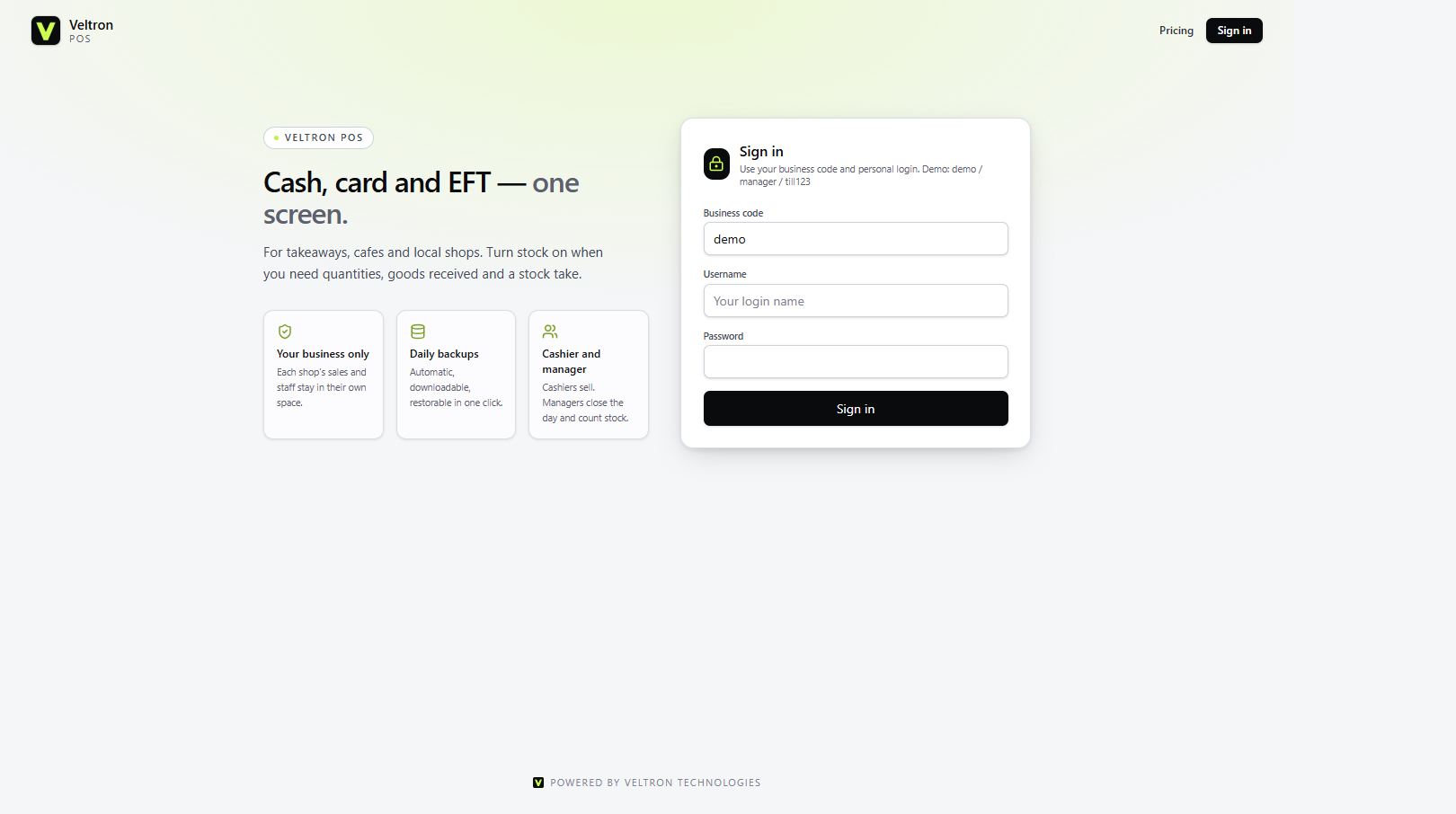
01 — The door
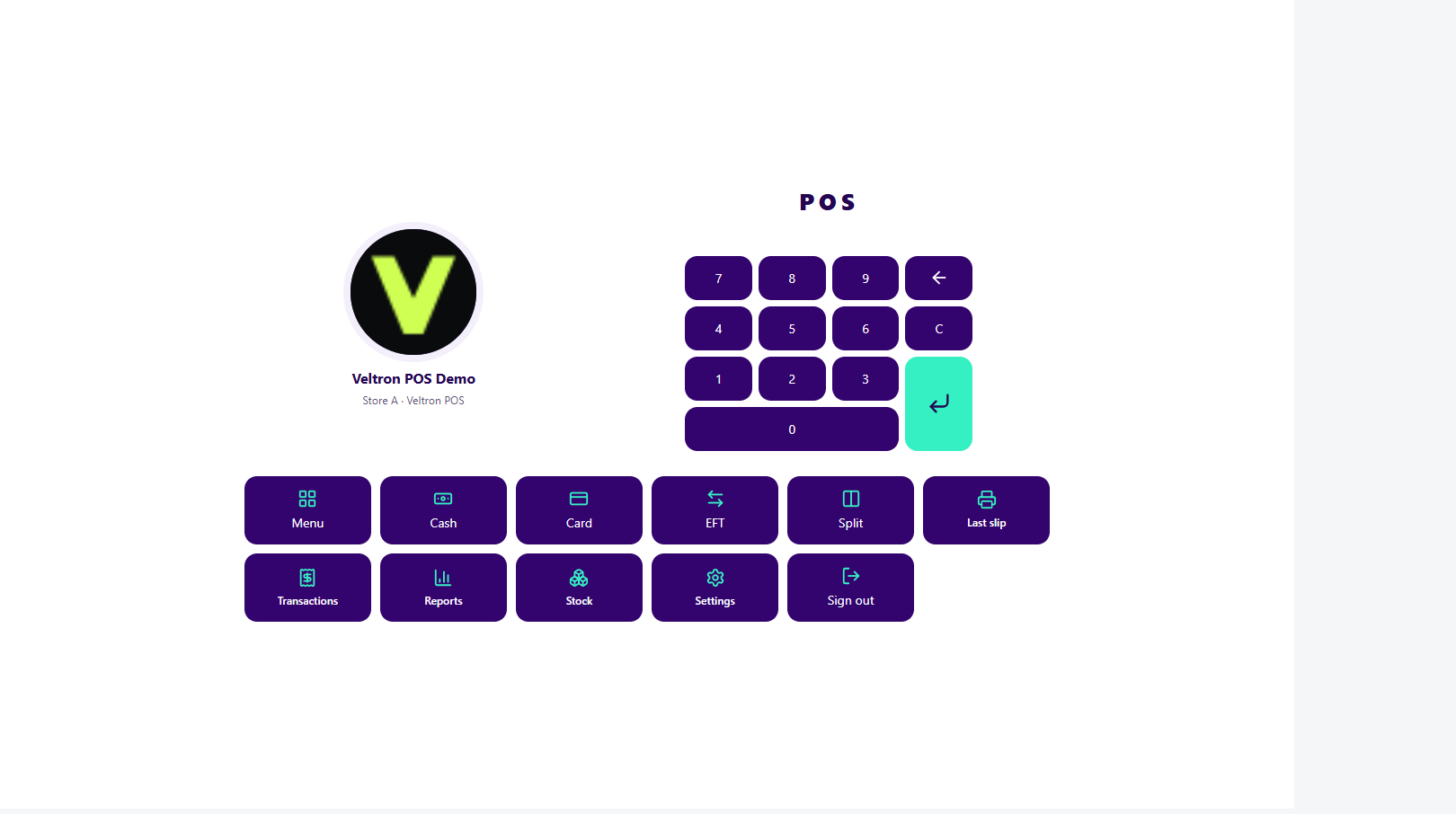
The till opens on the counter.
A business code, a name, a password. The manager and the cashier land on the sale, ready for the rush.
01 — The door
A business code, a name, a password. The manager and the cashier land on the sale, ready for the rush.
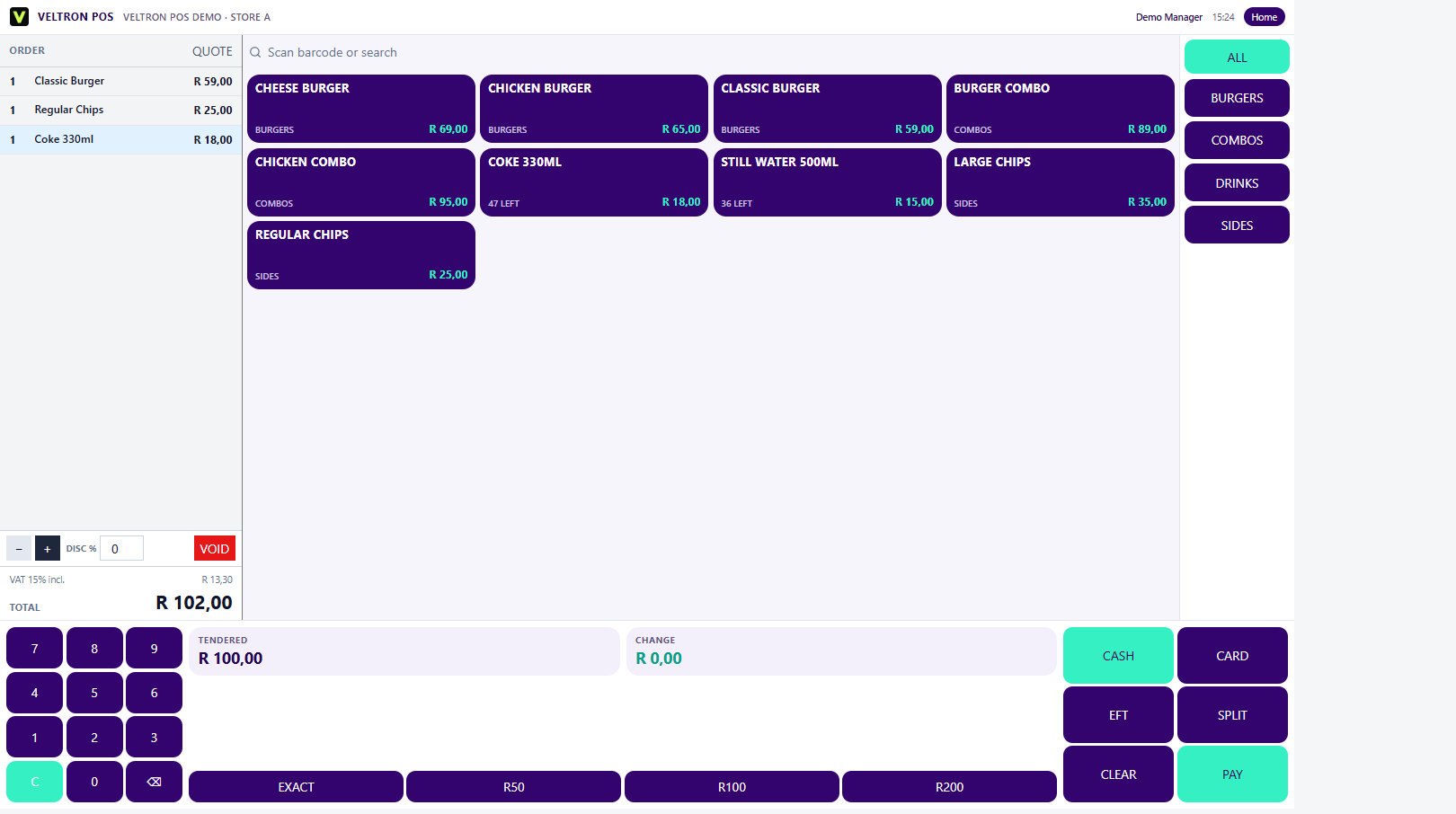
02 — The ticket
The ticket stays on the left. Burgers, sides, drinks and combos are buttons, grouped by category. Add what was ordered, take cash, card, EFT or a split, and the change is on the screen.
03 — The day
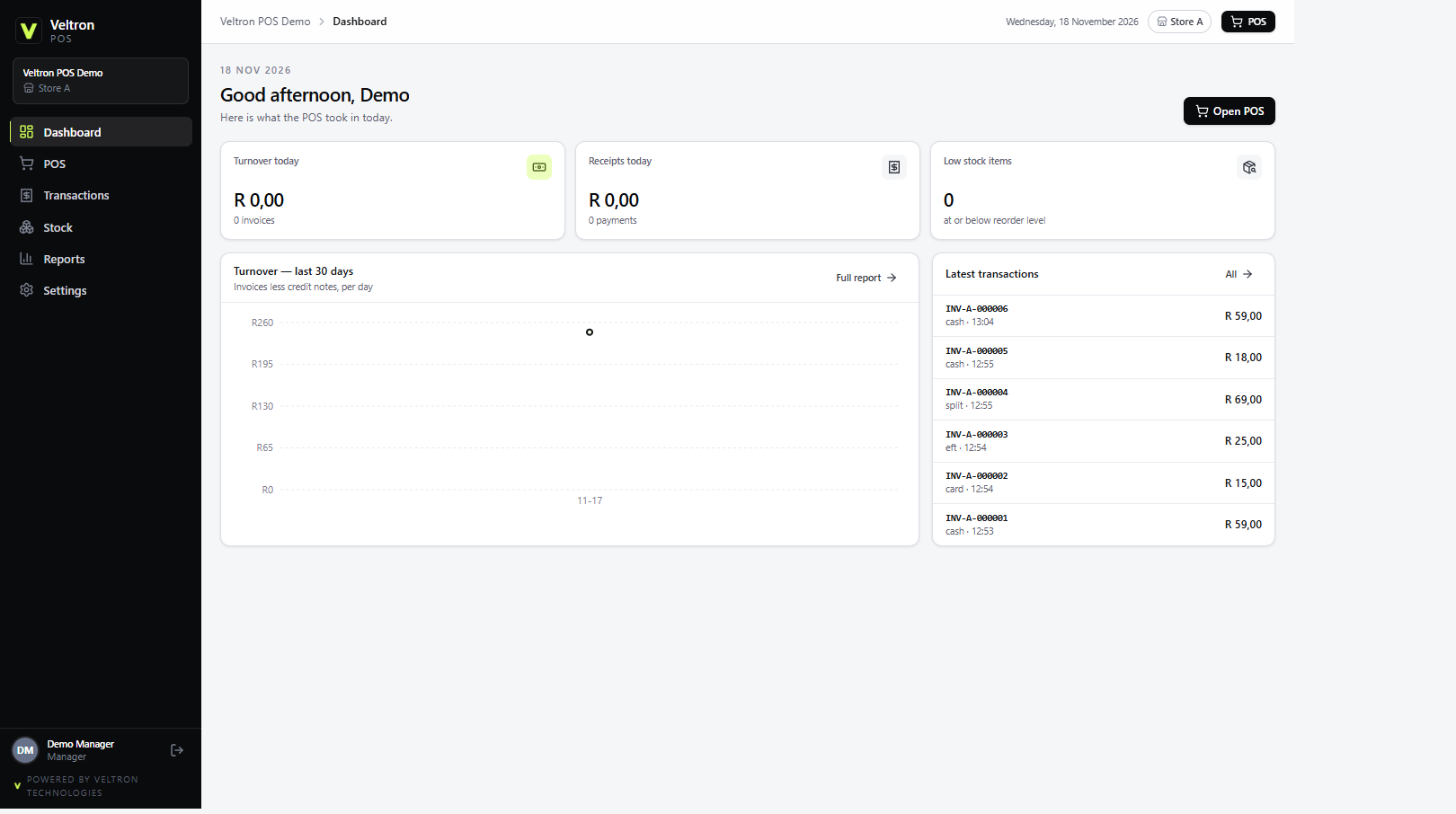
Today’s takings, the shape of the week, and the last sales with the tender written on them. Cash, card, EFT and split stay distinct after the rush.
04 — The record
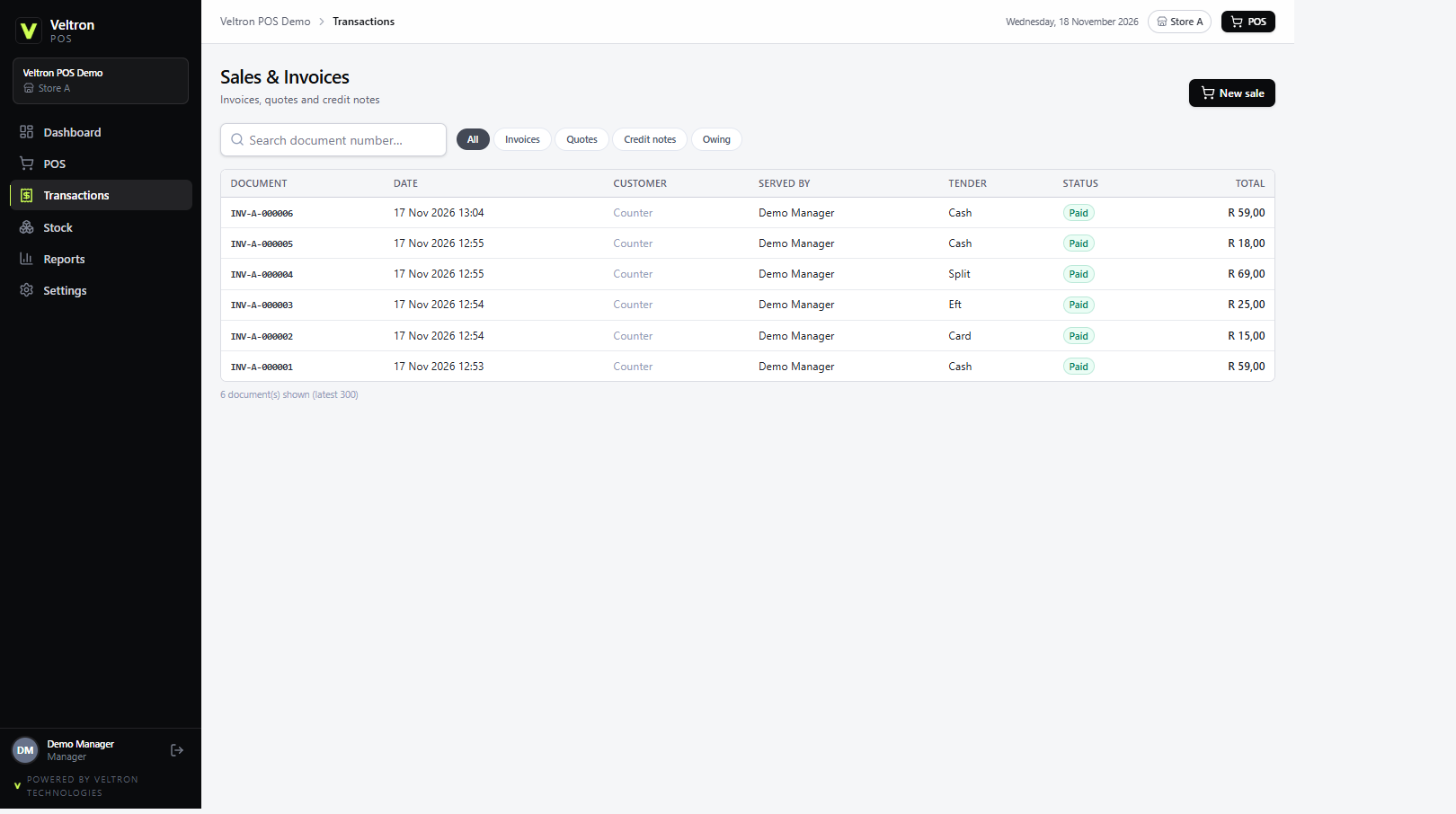
Search a document number. See who served it, the tender, and whether it is settled. Quotes and credit notes live in the same list when the counter needs them.
Takeaways, fast food, cafes and local vendors
Staff ring an item by number, or by tapping the menu
The owner wants today’s takings without opening another program
The other package
The full package for a business that runs on appointments.
Explore Veltron OS